This guide is written out-of-character (OOC) and is meant to provide help as a SecondLife user.
S32 tag to distinguish from roleplayers acting out facility staff characters.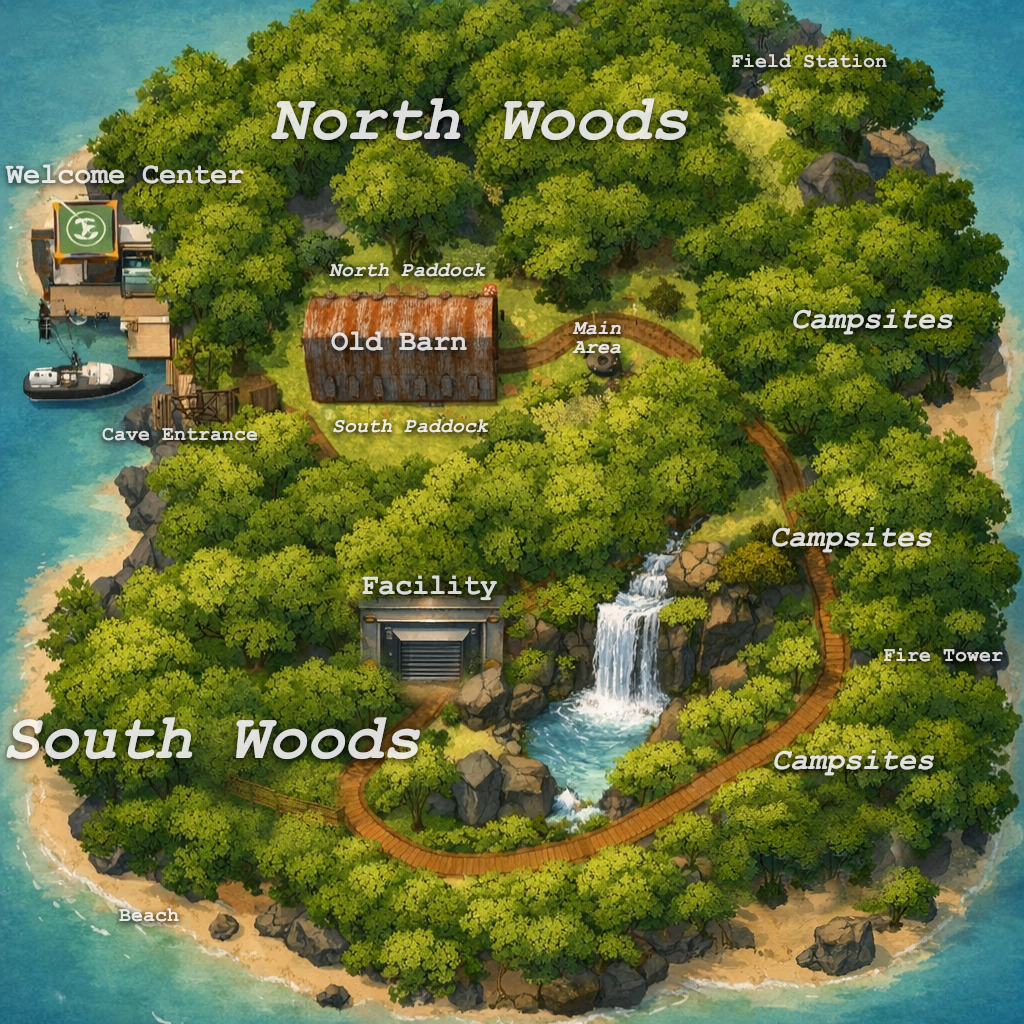
1. Welcome to Shelter 32
Shelter 32 is an adult-rated Second Life region built for exploration and interactive spaces, with a preference for non-human partners. It’s a private region that allows public traffic, and access may be revoked at any time.
Most systems here (teleport network, doors, and certain automated interactions) are painless when permissions are set correctly—and very stubborn when they aren’t. This guide explains how things are meant to work and how to fix the usual “teleporters/doors aren’t working” problems.
It should be noted, the region is designed with Shared Environment in mind. There is a full day/night cycle and interiors are meant to be dark and lit by artificial means. This is not required to use the region, but it /greatly/ enhances the mood and effect.
2. Arrival & orientation
- Landing point: You’ll arrive aboard the Occam's Wake, a sturdy ferry en-route to the Shelter 32 island.
- Get out of the rain: The ferry staff are telling you to get on the bus, you should listen to them.
- If you’re asked to grant permissions: choose Allow (details in the Experiences section below).
Activate Shelter-32 group and you'll teleport to the main area.
You hate all of this and just want to get fuck! Click Here
3. Getting around (teleporters, HUDs, and signage)
Shelter 32 uses experience teleports and HUD-assisted transitions. Teleporters and region HUDs rely on the Shelter 32 Experience to function correctly.
3.1 Trail Signs (Teleporters)
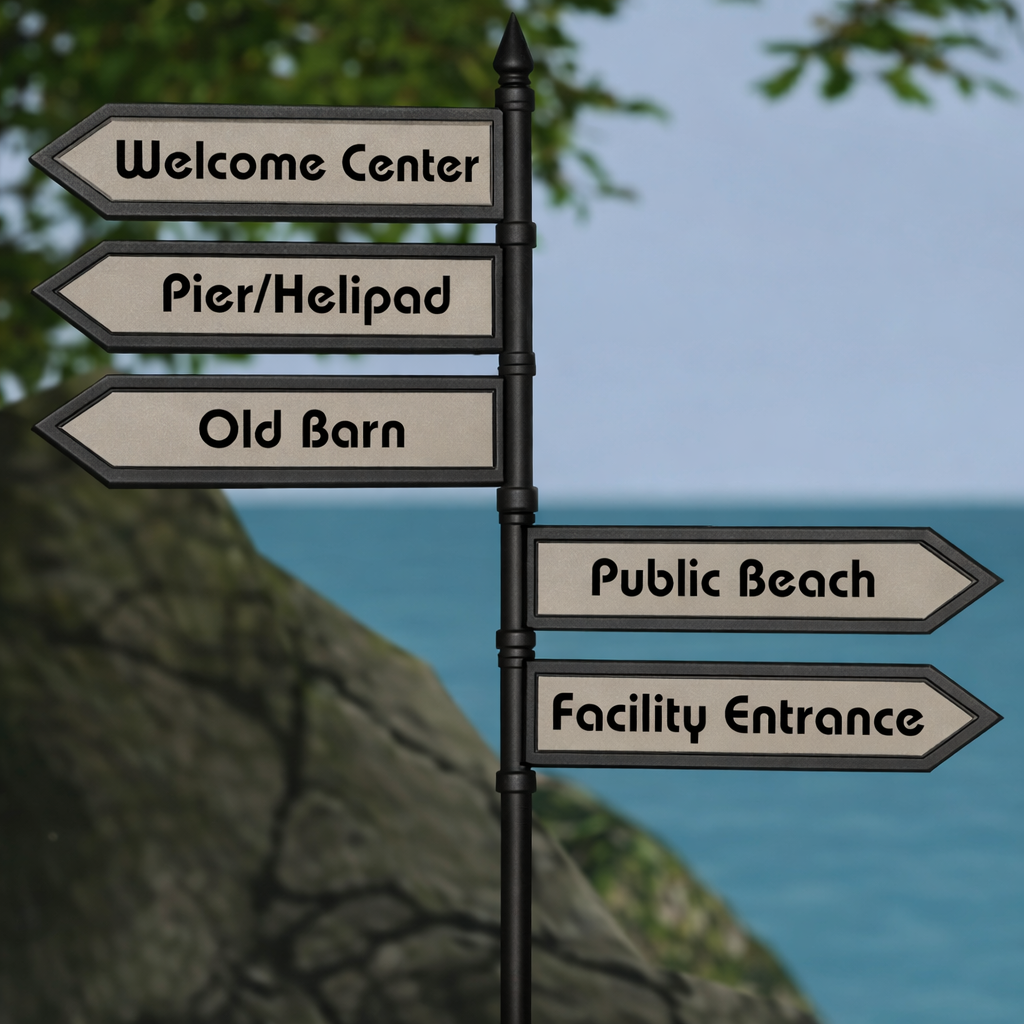
- Trail marker signs are scattered around the island These depict the direction to the named point of interest. You can click the sign to teleport directly to the destination.
3.2 HUDs
- HUDs require the Shelter 32 Experience: if the Experience is not allowed, HUD features can fail silently.
- Teleport transition huds are not required and may be opted-out of entirely by clicking the "Never Show Again" button on the HUD
3.3 Signs and interactive props
- Many signs are info objects (click for a notecard / message / link).
- Some props are Experience-driven and will not respond if permissions are blocked.
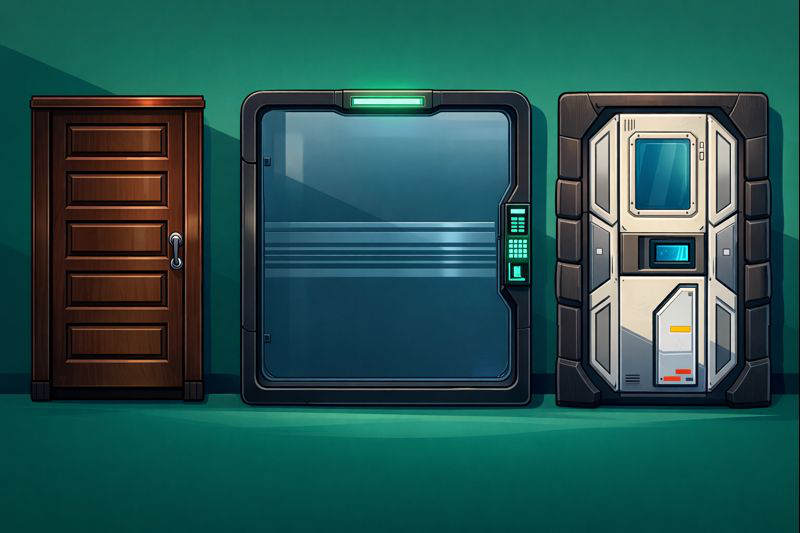
4. Doors, gates, and restricted areas
Doors and gates in Shelter 32 may behave differently depending on where you are.
Some are public, some are clearance-restricted, and many rely on a door scripting system.
Doors with a visible keypad have numeric access codes. The doors on ground level of the Facility are exceptions kept open for public access.
Many doors (not all) require you to have the Shelter 32 group tag active to respond.
If a door seems “dead,” check your active group tag first.
If you have the correct tag active and the door still doesn’t respond, see the troubleshooting section below.
5. Second Life Experiences
Experiences are a Second Life feature that lets region systems run smoothly without repeatedly asking permission.
In Shelter 32, Experience permissions are required for teleporters and HUDs currently in use.
5.1 What the Shelter 32 Experience is used for
- Teleporting you within the region
- Attaching and operating region HUDs (temporarily attached at the landing point, removed on teleporting)
- Running guided interactions that would otherwise require constant confirmation dialogs
Teleporters and HUD systems may stop working, or appear to do nothing.
5.2 If you declined it earlier (unblock / re-allow)
Viewer menus differ slightly, but the flow is similar:
- Open your viewer’s Experiences panel (often under Me or Avatar).
- Check Blocked and Allowed lists.
- Find the Shelter 32 Experience name and move it from Blocked → Allowed.
- Return to the teleporter/HUD/interaction and try again.
6. Troubleshooting (teleporters/doors not working)
6.1 Fast fixes (try these first)
- Wait 5–10 seconds and click again (region script lag is real).
- Check for an Experience prompt (it may be behind other windows).
- Move closer and click again (some doors have short click ranges).
- Detach heavy HUDs temporarily (rare, but some HUDs can interfere with clicking/lag).
6.2 If nothing in the region responds
- Make sure scripts are enabled in your viewer (some viewers have safety toggles).
- Relog (quickest way to clear stuck permissions and script state).
- Try a different viewer if you’re on a very old build (optional, last resort).
6.3 If teleporters don’t work but doors do
- You may have blocked the Experience (teleporters are usually Experience-driven).
- Your viewer may be suppressing teleport prompts/notifications.
- Remove any RLV attachments (collars, harness, mind control etc).
6.4 If doors don’t work but teleporters do
- Make the Shelter 32 group active, many doors won't respond otherwise.
- The door may be access restricted (group/clearance).
- You may be too far away or clicking the wrong prim face.
- Remove any RLV attachments (collars, harness, mind control etc).
6.5 If you accidentally blocked the Experience
Go to your viewer’s Experiences panel and move the Shelter 32 Experience from Blocked to Allowed, then retry the system you were using.
Message the ShelterSecurity bot with: “doors/teleporters not working” and include your viewer name (Firestorm / LL Viewer / etc.). It helps staff narrow down the cause quickly.
7 Teleport transition HUD (show/hide)
During teleports, you may see a brief transition HUD. This is normal and helps manage teleport flow and arrival guidance.
7.1 Disable the transition HUD
You can disable it at any time by clicking “Never Show Again” on the Shelter 32 Welcome HUD.
7.2 Re-enable the transition HUD
If you disabled it and want it back:
- Go to the Receptionist Desk in the Welcome Center.
- Click the red button.
- When the dialog appears, select “Delete”.
8. Getting help
The ShelterSecurity bot can act as a live helpdesk. If you’re stuck, simply IM it your question(s) and it will respond with guidance or next steps.
8.1 ShelterSecurity bot commands
When you IM ShelterSecurity in-world, you can either speak naturally or use a few simple commands that trigger specific tools:

-
help
Gives a short overview of what the bot can help with, plus direct links to the rules, guide, and Security Portal. -
landmark
The lm command will deliver you a landmark to Shelter 32's landing point. -
group
Asks the bot to check your current group memberships and send Shelter-32 Members group invitation if you require one.
If you were staff in the legacy Golden Shelter group but do not have any free group slots: run the clean groups command first! -
role list
Will display a list of available vanity roles you can select if you like. They do not provide any special privilege, and RP roles require membership in a secondary Shelter-32 Roleplay group. -
role {name}
The bot will assign you the selected role requested. If you request a RP role the bot will send you an invitation to the Roleplay group with your role unless you are already a member. The Roleplay group has all the same privilege of the main Shelter 32 Members group. -
clean groups
Asks the bot to remove you from old community groups it still moderates (for example, Site-32 Members, Golden Shelter Members, or Golden Shelter Staff) and report what it was able to change. This is optional cleanup for people who want to tidy up their group list after the move or those who do not have a free group to join. -
appeal
If you are banned, this walks you through the appeal process and points you at the correct appeal form for your avatar. If you are not banned, it explains what appeals are for and when you should use them.
- Fastest help: IM
ShelterSecuritywith what you’re trying to do and what isn’t working. - If you can: include your viewer name (Firestorm / LL Viewer / etc.) and whether you allowed the Shelter 32 Experience.
- If the bot can’t solve it: it will direct you to staff or the appropriate web form.
9. Moderation tools: the Security Portal (appeals & reports)
Shelter 32 runs a public-facing Security Portal to provide transparency and a structured way to submit appeals and reports. The goal is that you can always see how moderation is structured and how to request review, even if you don’t personally know staff.
- Appeals: if you are already banned and want a decision reconsidered.
- Reports: if you need to report disruptive behaviour or safety concerns.
Portal access and layout may change over time, but it is intentionally designed around: public ban visibility (in broad terms), report submission, and an appeal path that doesn’t require personal connections.
Security Portal • Appeal / Report forms
The portal typically expects you to provide your own evidence URLs (screenshots, chat logs, etc.) hosted elsewhere.
10. Badge Generator
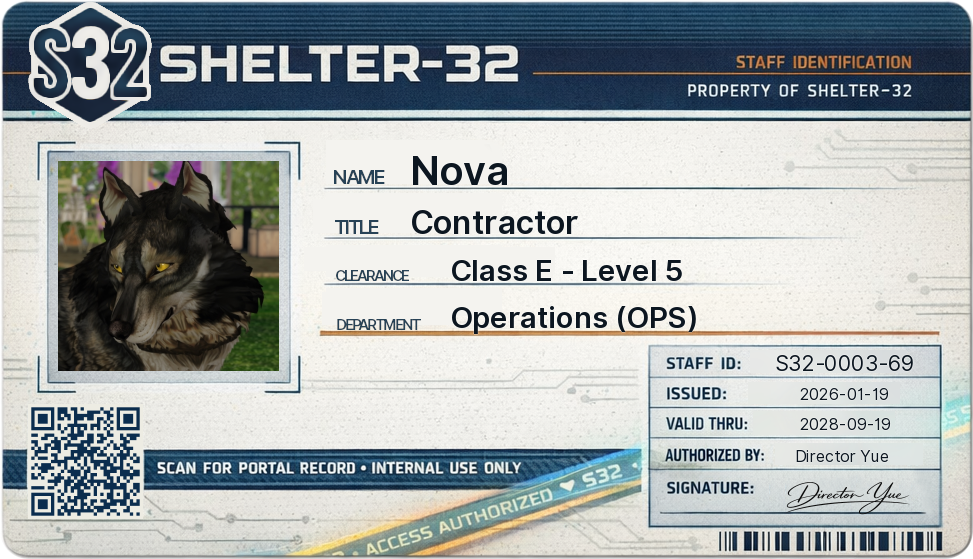
Need a quick badge for your character? The Shelter-32 ID Badge Generator lets you create a savable, uploadable ID card in minutes—complete with photo, role/department details, clearance level, and a scannable QR code. The perfect addition to your site roleplay!
- Visit the generator at id.shelter32.com
- Fill out the form fields (name, department, role, etc.)
- Add a portrait:
- Best option: paste a Second Life texture UUID to use an image you already uploaded to SecondLife
- OR upload an image directly
- If you skip both, a default placeholder portrait is used
- Click Continue
- Confirm details and click Generate (or go back and make changes)